We have all had this experience: you search for something online, click a promising link, and then… you wait. You stare at a blank white screen, or watch as a half-loaded page stutters and jumps around while images slowly appear. After about three seconds of this, you hit the back button and go to a competitor’s site instead.
As a website owner, that scenario is your worst nightmare. A slow website doesn’t just frustrate your visitors; it actively hurts your business. It lowers your conversion rates, damages your brand’s reputation, and makes search engines reluctant to send people your way.
Google recognized this frustration years ago and introduced a set of specific metrics called Core Web Vitals. These metrics are designed to measure how a real human experiences the speed, responsiveness, and visual stability of a web page. If you run a WordPress site, optimizing for these vitals is no longer optional—it is a mandatory part of running a successful online presence.
However, the technical jargon surrounding website speed can feel overwhelming. You don’t need a degree in computer science to fix these issues. From practical experience working with countless websites, speeding up a WordPress site generally boils down to a few fundamental changes.
Here is a straightforward, real-world checklist to help you speed up your WordPress site in three logical steps.
Understanding the Core Web Vitals: What Are We Fixing?
Before we start changing settings, it helps to understand exactly what Google is measuring. While there are many speed metrics, Core Web Vitals focus on three main pillars of user experience.
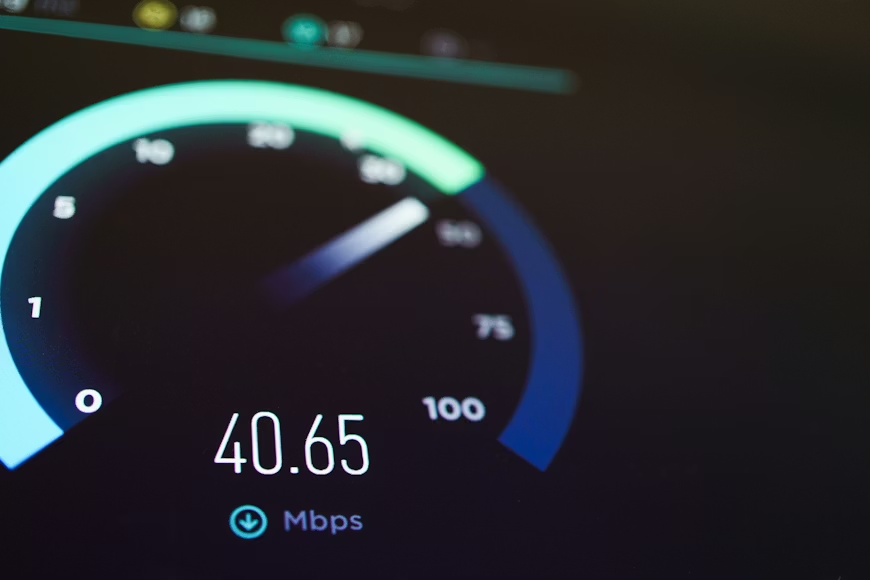
- Largest Contentful Paint (LCP): This measures raw loading performance. Specifically, it tracks how long it takes for the largest piece of content on the screen (usually a hero image, a video, or a big block of text) to fully render. A good LCP score is 2.5 seconds or less. If your site takes longer than that, your visitors are left staring at an empty screen.
- Interaction to Next Paint (INP): This metric replaced the older First Input Delay (FID). INP measures responsiveness. When a user clicks a button, opens an accordion menu, or taps a link, how quickly does the website visually react? If someone clicks “Add to Cart” and nothing happens for a full second, they might click it again, causing errors. You want your INP to be under 200 milliseconds so the site feels snappy and immediate.
- Cumulative Layout Shift (CLS): This measures visual stability. We all hate it when we are about to click a link, but right before we tap the screen, a late-loading image or ad pops in, pushing the text down, causing us to click the wrong thing. CLS tracks how much the layout shifts during the loading phase. A score of 0.1 or less is considered good.
Now that we know what we are trying to improve, let’s look at the three most impactful steps you can take to fix them on your WordPress site.
Step 1: Optimize Your Images and Media (The Easiest Win)
When you run a speed test on a slow WordPress site, the culprit is almost always the same: massive, unoptimized images. Many site owners make the mistake of downloading a high-resolution photo from a stock website—or straight from their smartphone camera—and uploading it directly to their WordPress media library.

These files can easily be 5 or 6 megabytes each. If you have three of those on your homepage, your visitor’s browser has to download almost 20 megabytes of data just to show the page. This destroys your LCP score.
Resize Before You Upload
The first rule of image optimization is to serve images at the size they will actually be displayed. If the main content area of your blog is only 800 pixels wide, there is absolutely no logical reason to upload an image that is 4000 pixels wide. Use a basic photo editor on your computer to crop and resize the image dimensions before it ever touches your website.
Compress and Convert to Next-Gen Formats
Once the image is the correct physical size, the file size needs to be compressed. Compression removes unnecessary data from the image file without noticeably reducing the visual quality to the human eye.
Furthermore, you should be serving images in modern formats like WebP or AVIF. These formats were designed specifically for the web and offer much smaller file sizes compared to traditional JPEGs or PNGs. In real-world use, installing a dedicated WordPress image optimization plugin will handle this automatically. These tools compress your media library in the background and serve the modern WebP formats to browsers that support them.
Implement Lazy Loading
Normally, when a browser loads a webpage, it tries to download every single image on that page immediately, even the ones buried all the way down in the footer. This clogs up the network.
Lazy loading is a technique that tells the browser, “Only download the images that are currently visible on the user’s screen. Wait to download the rest until the user actually scrolls down.” WordPress includes basic lazy loading by default nowadays, but many optimization plugins do a much more thorough job of enforcing it, which vastly improves initial loading times.
Step 2: Implement Robust Caching and Code Optimization
WordPress is a dynamic content management system. This means that every time a visitor lands on your site, the server has to run PHP scripts, query the database to find your post content, put it all together into an HTML page, and then send it to the visitor. If you get a sudden spike in traffic, the server gets overwhelmed trying to build the same page hundreds of times a second.
Use a Page Caching Solution
Caching is the ultimate shortcut. Think of it like a restaurant. If a chef cooks a meal from scratch every single time a customer orders it, the wait time is long (this is normal WordPress). Caching is like the chef making a large batch of the most popular soup in advance. When someone orders it, it is served immediately.
A caching plugin takes the dynamically generated HTML page and saves a static copy of it. When the next visitor requests that page, the server skips all the heavy lifting and just hands them the saved static copy. This drastically reduces the time it takes for your server to respond, improving almost every Core Web Vital metric.
Minify Your CSS and JavaScript
Modern WordPress themes and plugins rely heavily on CSS (for styling) and JavaScript (for functionality). However, developers write this code with spaces, line breaks, and comments so that humans can read it. Web browsers do not need any of that formatting.
Minification is the process of stripping out all the unnecessary spaces, characters, and comments from your code files. This makes the files smaller and faster to download.
Delay or Defer Unused JavaScript
JavaScript is often the main cause of a poor INP score. If your site is busy running heavy tracking scripts, chat widgets, or complex animations, the browser becomes too “busy” to respond quickly when a user tries to click a button.
To fix this, you should defer non-critical JavaScript. This tells the browser to finish loading the main visual content of the page first (improving LCP and CLS), and only load the heavy scripts afterward. Many modern performance plugins allow you to delay the loading of things like Google Analytics or Facebook Pixel until the user actually interacts with the page (like moving their mouse or scrolling).
Step 3: Upgrade Your Hosting and Clean Up Your Environment
You can install all the optimization plugins in the world, but if your website is built on a weak foundation, it will never be truly fast. In the context of a website, your foundation is your web hosting server.

The Problem with Cheap Shared Hosting
When people first start a WordPress site, they often choose the cheapest shared hosting plan available, which might cost a few dollars a month. In shared hosting, your website is sitting on a single physical server alongside hundreds or even thousands of other websites. You are all sharing the same processor and memory. If one of those other sites gets a traffic spike, your website slows down.
If you are serious about your website’s performance and passing Core Web Vitals, transitioning to managed WordPress hosting or a Virtual Private Server (VPS) is highly recommended. These environments give your site dedicated resources, significantly faster processors, and server-level caching that works far better than any plugin can.
Declutter Your WordPress Install
Finally, you need to look at what you have installed. Every active plugin adds code to your website. Even if you aren’t actively using a feature, the plugin might still be loading its CSS and JavaScript files on every single page.
Take an honest audit of your WordPress dashboard. Do you really need three different slider plugins? Are you still using that calendar widget from four years ago? Delete any theme or plugin that is not actively providing core value to your business.
Additionally, perform regular database cleanups. Over time, WordPress stores thousands of post revisions, auto-drafts, trashed comments, and expired transient options. This database bloat makes it harder for your server to find the data it actually needs. Cleaning the database regularly keeps the backend running smoothly.
Moving Forward with Speed
Improving your Core Web Vitals is not a one-time project; it is an ongoing practice. Every time you add a new feature, upload a new blog post, or change your theme, you introduce new variables that can affect your speed.
By keeping your images light, utilizing strong caching, and maintaining a clean, well-hosted WordPress environment, you create a seamless experience for your visitors. Ultimately, a fast website respects the user’s time. When you provide a fast, stable, and responsive experience, visitors stay longer, read more, and are far more likely to trust your brand.